Don’t take the AI’s word for the total
The AI extracts the figures from your document. DeskCalc shows them as a labelled tape. You check every line, correct what is wrong and press Confirm. The AI works only with the confirmed result.
For auditors, tax advisors and bookkeepers · runs on your PC · no account
The AI reads. DeskCalc calculates. You confirm.
- 1
Attach the document in Claude Desktop — an invoice, receipts, a statement.
- 2
The figures open as a tape in DeskCalc on your PC.
- 3
You check and press Confirm. Printed figures that don’t add up are marked in red.
- 4
The AI works only with the confirmed result.
Ready in three steps
Windows · Claude Desktop · about two minutes
-
1
Install DeskCalc 11.3 (free 31-day trial).
Download DeskCalc -
2
Download Verify and double-click it — Claude Desktop installs it.
deskcalc-verify.mcpb -
3
Attach an invoice in Claude and write:
Check this invoice in DeskCalc.No invoice at hand? Use one of the sample documents below — each has errors built in.
Codex, set-up by hand and requirements
Claude Desktop by hand
Add to claude_desktop_config.json:
{ "mcpServers": { "deskcalc-verify": {
    "command": "npx", "args": ["-y", "@deskcalc/verify"] } } }
Codex
The Codex CLI, the IDE extension and the Codex mode of the ChatGPT desktop app share ~/.codex/config.toml. Add:
[mcp_servers.deskcalc-verify]
command = "npx"
args = ["-y", "@deskcalc/verify"]
- Windows and DeskCalc 11.3 or later (website or Microsoft Store version).
- Node.js 20 or later — only for Codex and the npx set-up. Claude Desktop brings its own.
- After updating DeskCalc, close it completely once. Verify tells you if an older DeskCalc is still running.
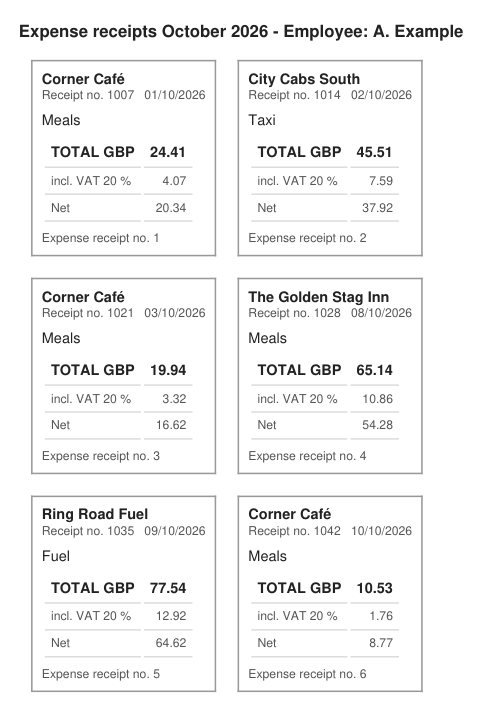
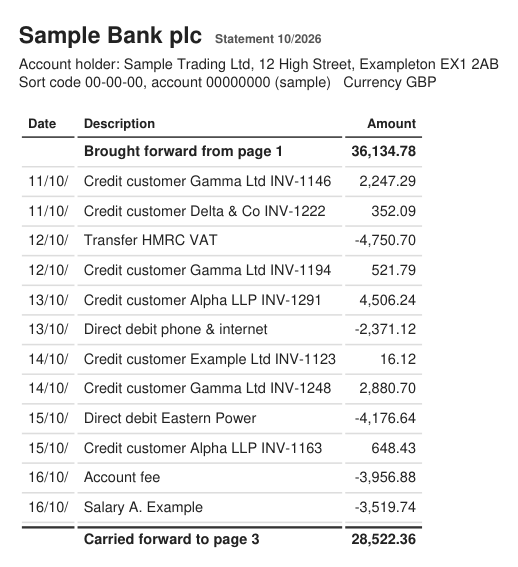
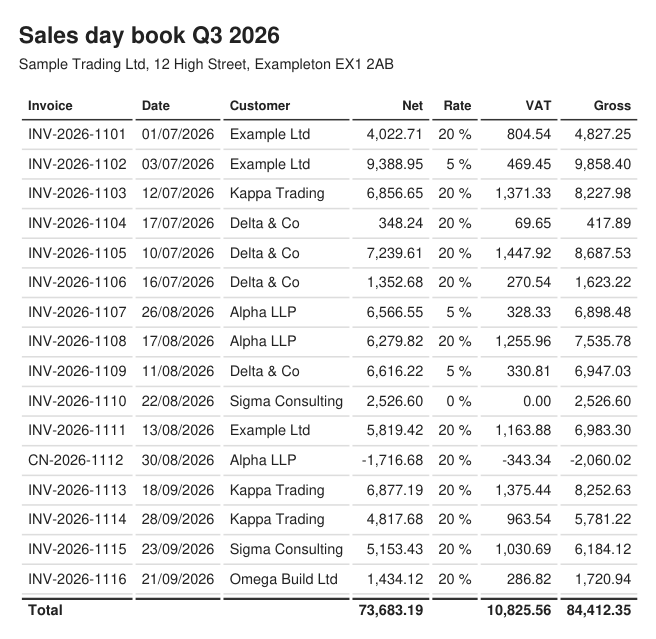
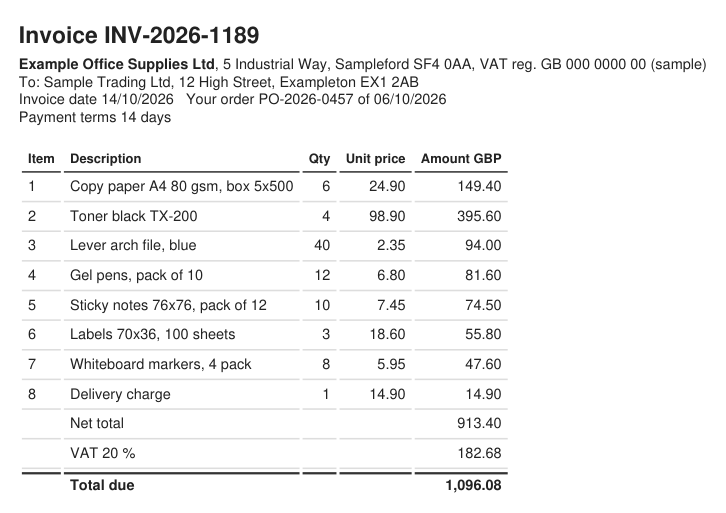
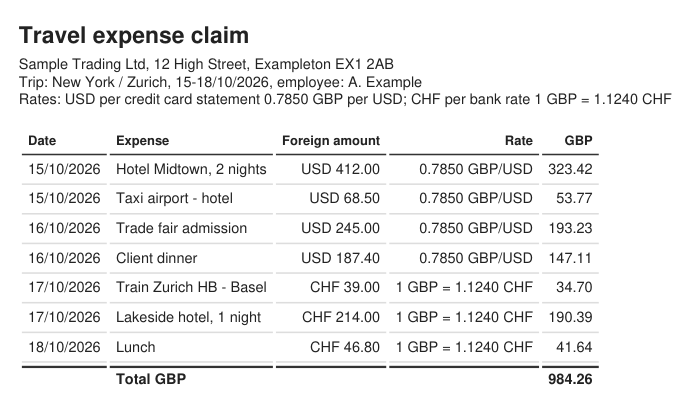
Sample documents with deliberate errors
Fictitious documents, each with mistakes built in. Attach one in Claude Desktop and ask Claude to check it in DeskCalc. Each folder has a Solution.txt with the expected findings — don’t attach that one.
Everything else, when you need it
What it checks+
| Check | What DeskCalc shows |
|---|---|
| Sum of amounts | Receipts and expenses, one line each — 30 receipts on one tape. |
| Quantity × unit price | Each item line against the line total printed on the invoice. |
| VAT added or included | DeskCalc computes the tax from the subtotal. |
| Discount, surcharge, Skonto | On a single item line or on the subtotal; each line total against the printed one. |
| Mixed VAT rates | One block per rate, a grand total (GT) line at the end. |
| Carry-overs and printed subtotals | Statements and ledgers over several pages. Verify names the first carry-over that is wrong; later ones are marked as following from it. |
| Footing and cross-footing | Each table row is a block: net + tax, next to the gross printed on the document. Column totals against the printed ones. Up to 125 rows per tape. |
| Foreign currency | Amount × exchange rate, against the converted amount on the document. |
| Amount payable | The confirmed total against the total printed on the document. |
Documents round cents in different ways: per line, per tax amount, or tax per item as many billing programs do. Verify reports such differences as rounding, not as errors.
When a printed figure is wrong+
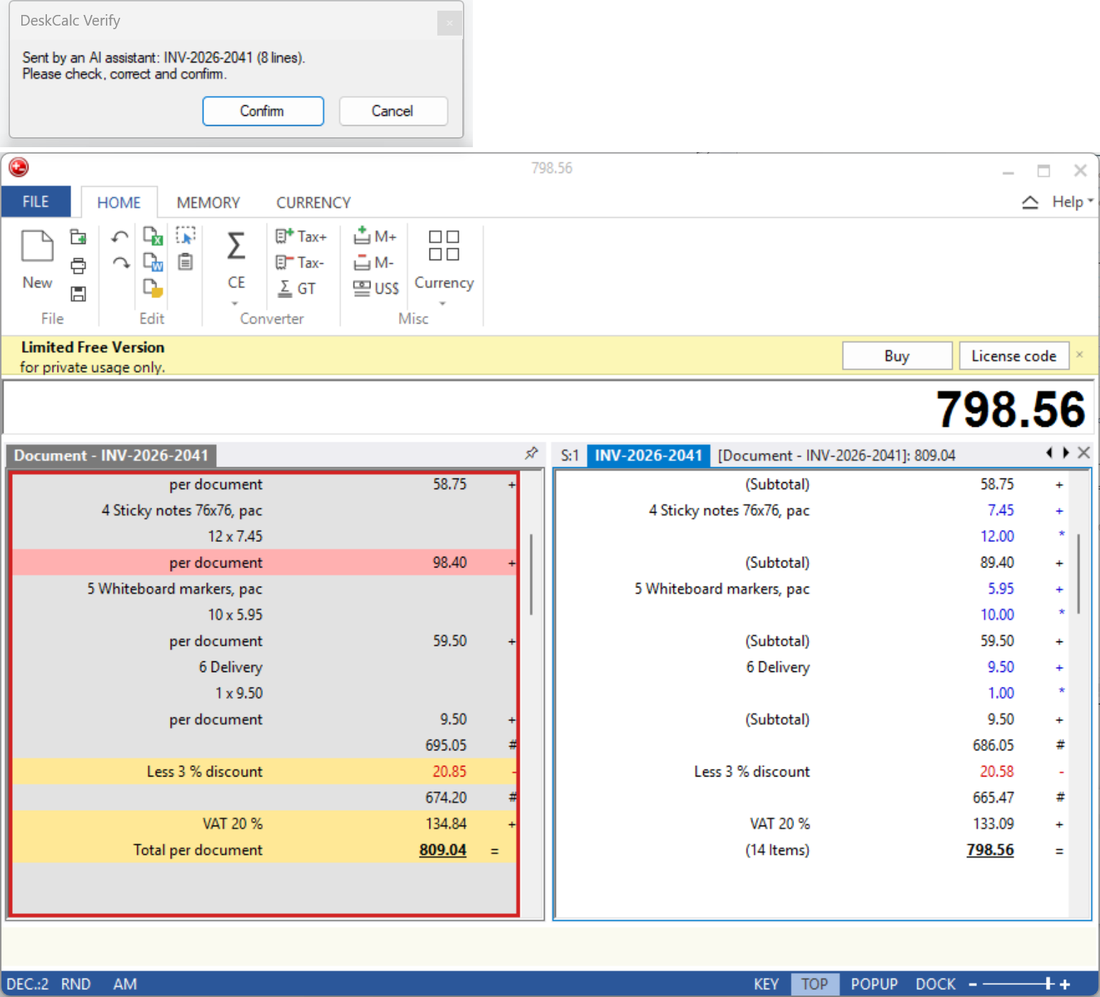
Example: one misprinted row in a sales day book+
On the DeskCalc tape
Every row is a block. DeskCalc adds net + tax itself and puts the result next to the gross printed on the document.
INV-2026-1107 Alpha 5%
  Net                  6,566.55  +
  Tax                    328.33  +
  Gross per document   6,894.88  #
The document prints 6,898.48.
What the AI reports back (abridged)
After you press Confirm, the AI gets the document check and tells you which printed figures do not match.
document_check: 3 of 19 figures do NOT match
  row "INV-2026-1107": net 6566.55 + tax 328.33
     document 6898.48, DeskCalc 6894.88 (difference -3.60)
  net column
     document 73683.19, sum of rows 73583.19 (difference -100.00)
  total
     follows from the row above, not a new error
Audit record as PDF · Reconcile two documents+
Audit record as PDF
Say “save the audit record” and Verify writes a PDF for your working papers: document, date, user, the lines with the calculation, your corrections, the document check and a fingerprint. It is saved locally in Documents\DeskCalc Verify\Audit records.
Reconcile two documents
Confirm two tapes — an invoice and a delivery note, an order or a payment — and Verify compares them: which lines match, which amounts differ, what appears in only one of them, and the difference in total.
Privacy · Which AI apps work+
Privacy
- The check runs on your PC. Verify talks to DeskCalc through files in Documents\DeskCalc Verify. It opens no network connection, needs no account and sends no telemetry. DeskCalc does the calculation, not the AI.
- What the AI sees: the document you give it — that is between you and your AI provider, as it would be without Verify — and the confirmed result: total, lines, your corrections.
- What stays local: the tapes in DeskCalc and the PDF audit records. The job files are deleted after each check.
Which AI apps work
- Yes: Claude Desktop. Codex — CLI, IDE extension and the Codex mode of the ChatGPT desktop app.
- No: ChatGPT chat and Microsoft 365 Copilot. They only accept servers on the internet. Verify runs on your PC and has no cloud relay, on purpose.
Free version and limits+
Free version and limits
Verify uses your installed DeskCalc, so DeskCalc’s own rules apply. DeskCalc is free to try with every feature for 31 days. After that, the free version keeps working for results up to 1,000,000. A tape that would go beyond the limit is stopped with a message — never cut off silently, so the AI never gets a partial total.
One tape holds up to 500 lines, or up to 125 rows when you foot and cross-foot a table. Larger documents need more than one check.
Licences for one PC or a whole officeCheck the figures before the AI uses them
Install DeskCalc 11.3, add Verify to Claude Desktop or Codex, and try it with one of the sample documents.