What stays exactly the same
Replacing a printing calculator does not mean learning to add again. Victor, Sharp, Casio or Canon — under the badge they are the same machine, and the reason people hesitate is the same too: a desk calculator is muscle memory. None of that is lost.
- The tape. Every entry stays visible above the total. You scroll back, you check, you correct a line in the middle — and everything below recalculates.
- Touch typing. The numeric keypad works the way your machine does. You keep your eyes on the document, not on the screen.
- The key sound. DeskCalc can beep on every keystroke. That is not a gimmick — it is the confirmation that lets you type blind on a keyboard, where the feel is different from a machine.
- Working offline. No account, no cloud, no connection. What you calculate stays on your computer.
What you gain on top
This is the part a paper tape cannot do, and it is the reason most people stop printing altogether.
The tape goes into the document
Copy the tape and paste it into Word, Excel or a PDF — with the columns, the labels and the negative amounts in red. The digital version of the paper strip you used to staple to the paperwork.
See all six workflows- Label every line, so the tape still makes sense next week.
- Correct an entry anywhere in the list instead of starting over.
- Save a calculation and open it again tomorrow.
- No consumables, ever.
What the machine on your desk actually costs you
A machine on the desk does not feel like a running cost, because it is paid in small amounts. Here is the same calculation our ROI sheet uses.
| Item | Assumption | Per year |
|---|---|---|
| Paper rolls | 6 rolls at $0.99 | $5.94 |
| Ribbon / cartridge | one per year | $3.00 |
| Electricity | 9 W, 8 h/day, 5 days, 48 weeks — 17.28 kWh at $0.15 | $2.59 |
| Running costs | $11.53 | |
| Plus the machine itself | $100.00 spread over 8 years | $100.00 |
| Total over 8 years | $192.26 |
Running costs are rounded to the cent; the eight-year total is calculated from the unrounded figures.
Against one DeskCalc licence
| Workplaces | DeskCalc | Machines | You keep |
|---|---|---|---|
| 1 | $29.95 | $192.26 | $162.31 |
| 5 | $119.95 | $961.28 | $841.33 |
| 10 | $199.95 | $1,922.56 | $1,722.61 |
Figures from our ROI sheet. Change the assumptions to your own numbers: Open the ROI calculator
More than 10 workplaces, or a terminal server? Tell us how many seats you need and how you deploy — you get a written quote, not a sales call. Request a quote
The same keys, on your keyboard
The numeric keypad works the way the machine does, so blind typing carries straight over. These are the keys people ask about — and where each one lands in DeskCalc.
| On the machine | In DeskCalc |
|---|---|
| The + and − keys (add mode) | Type the amount and press + or −. It lands on the tape, negatives in red, with the running total above. |
| × and ÷ | Multiply and divide with * and /; the result drops onto the tape as its own line. |
| % percent | The percent key works the same, including add-on and discount on a value. |
| GT grand total | DeskCalc keeps a grand total across separate calculations, recalled the same way. |
| M+ M− memory | The independent memory adds to, subtracts from and recalls a memory total, just like the four memory keys. |
| Item count / non‑add # | Count the entries, or print a reference line that is not added into the total. |
| Decimal selector & 5/4 rounding | Set the number of decimal places and 5/4 rounding once in DeskCalc’s options; it holds for every line. |
| Sales‑tax key | Store your rate and add or remove tax on a line with one key. |
Switching from a specific model?
Under the badge it is the same machine — but here is the switch spelled out for yours, with its own supplies and running cost.
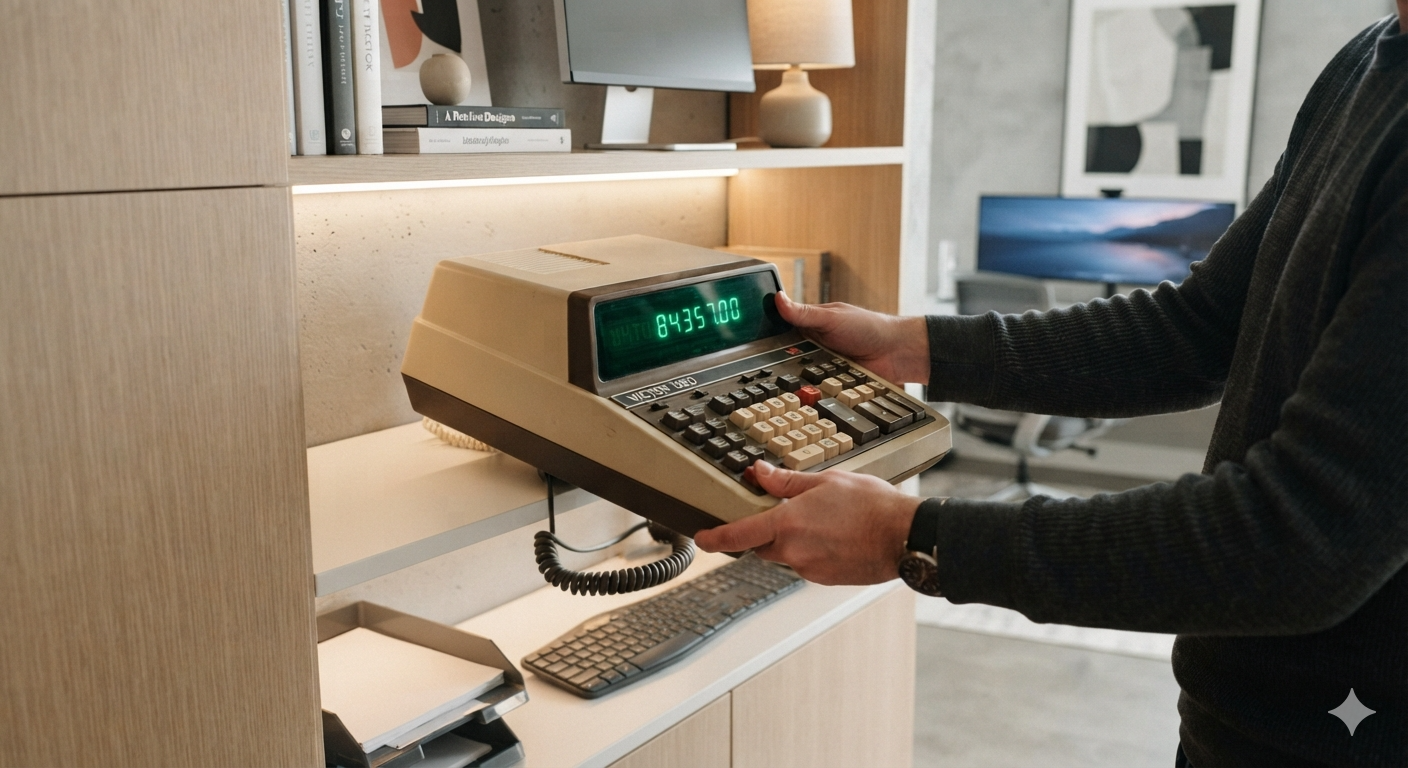
Victor 1280-7
Ribbon (Victor 7010 twin-spool)
See the switch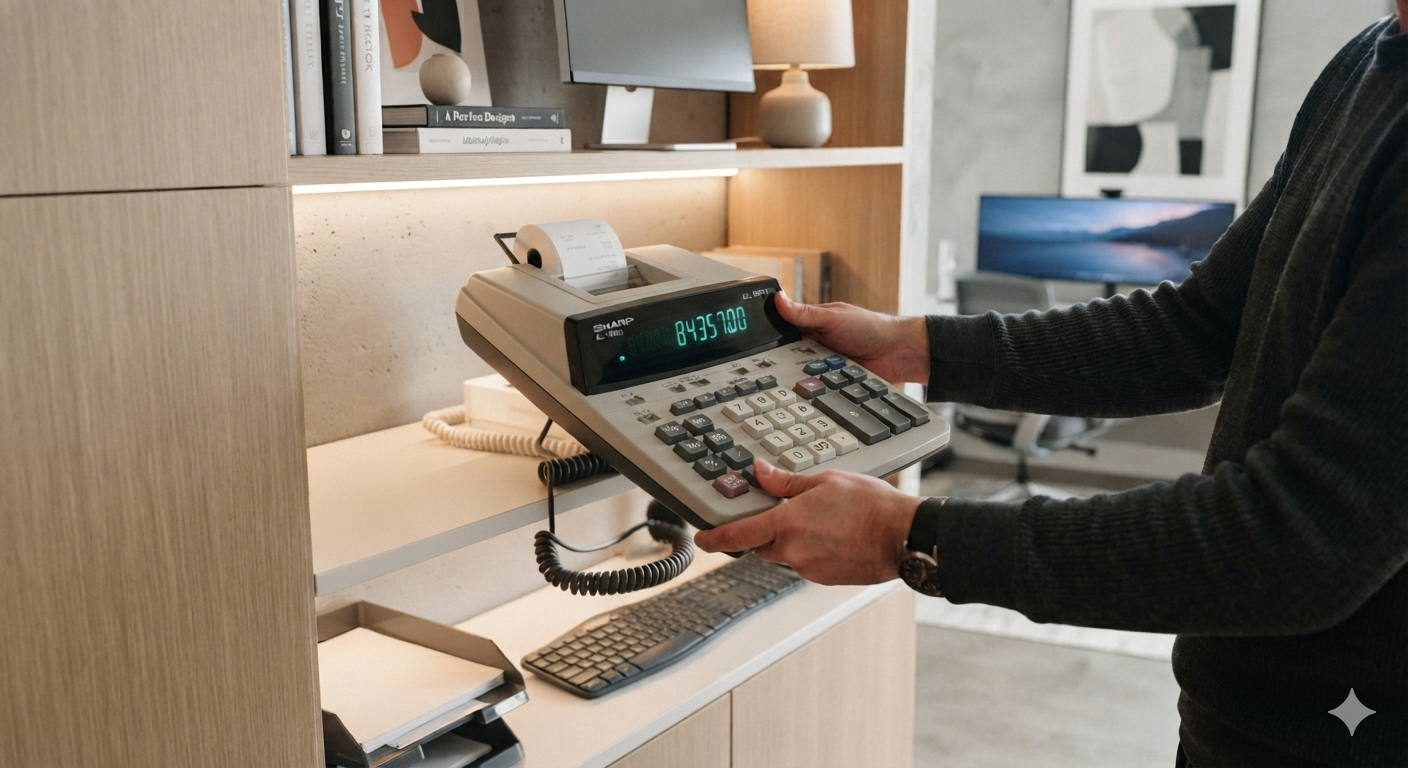
Sharp EL-1801V
Ink roller (Sharp EA-772R)
See the switch
Canon P170-DH
Ink roller (Canon CP-13)
See the switch
Casio HR-170RC
Ink roller (Casio IR-40T)
See the switch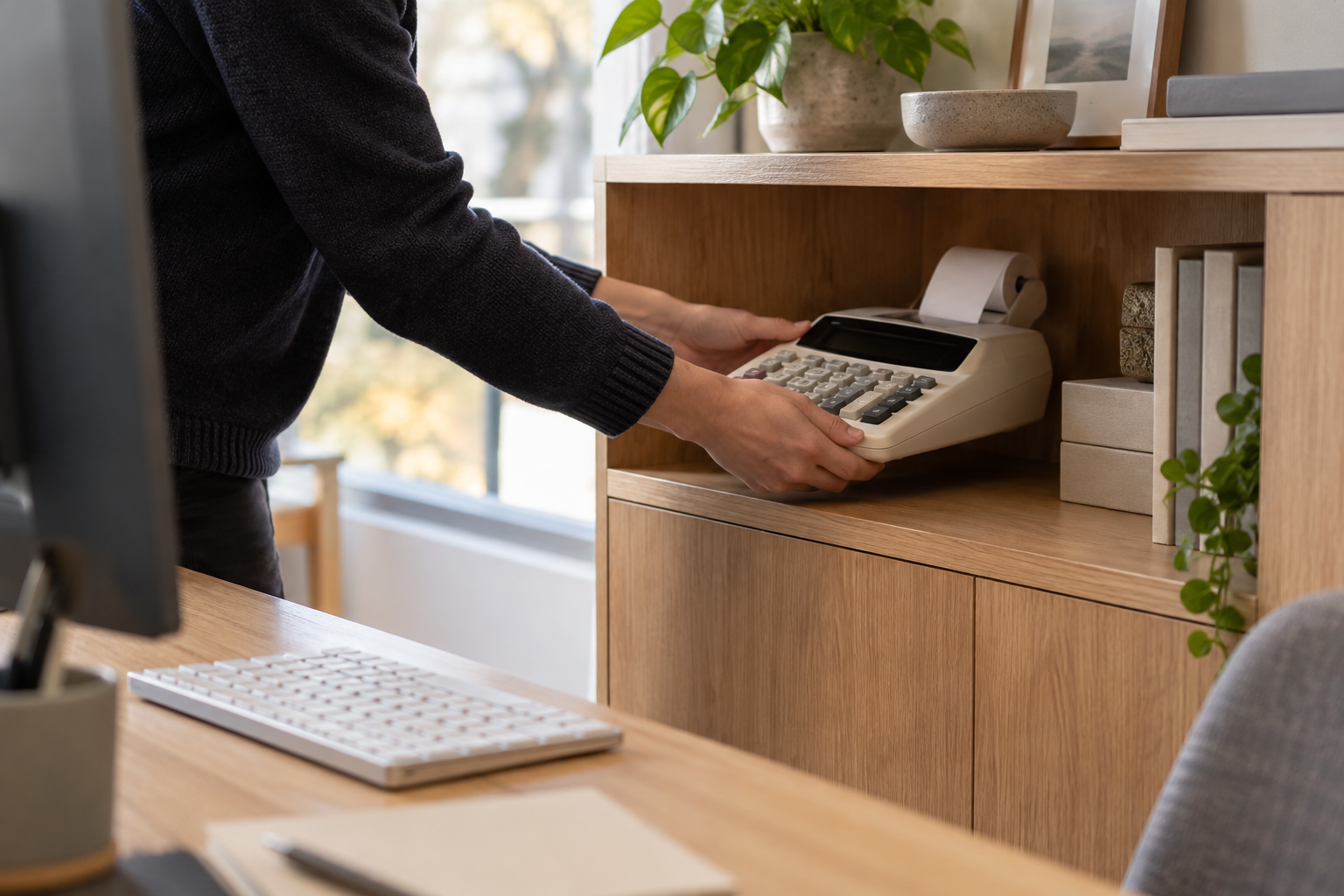
Sharp EL-1197PIII
Ink ribbon (black/red, GR24 twin-spool)
See the switch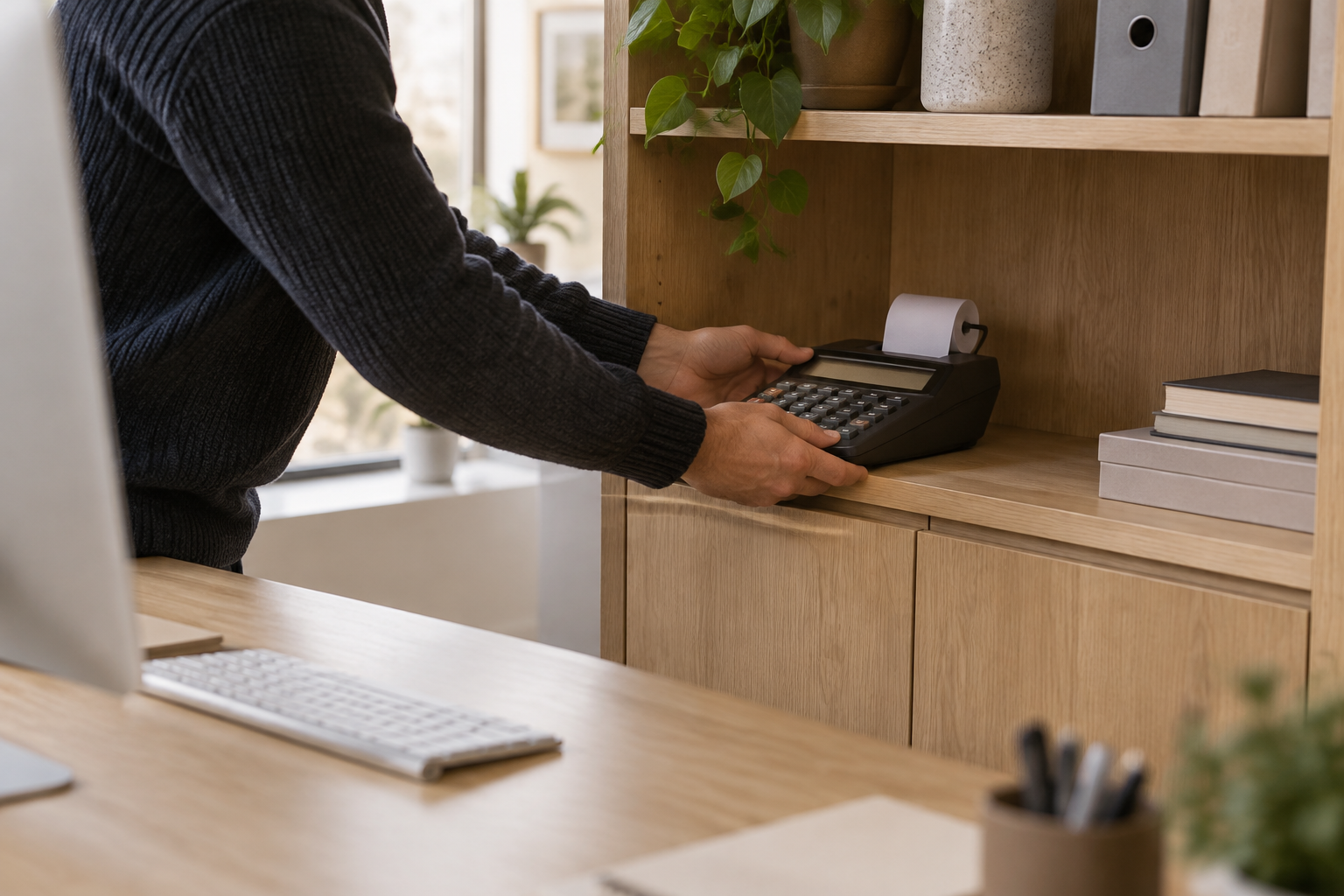
Casio HR-100TM
Ink roller (Casio IR-40T)
See the switch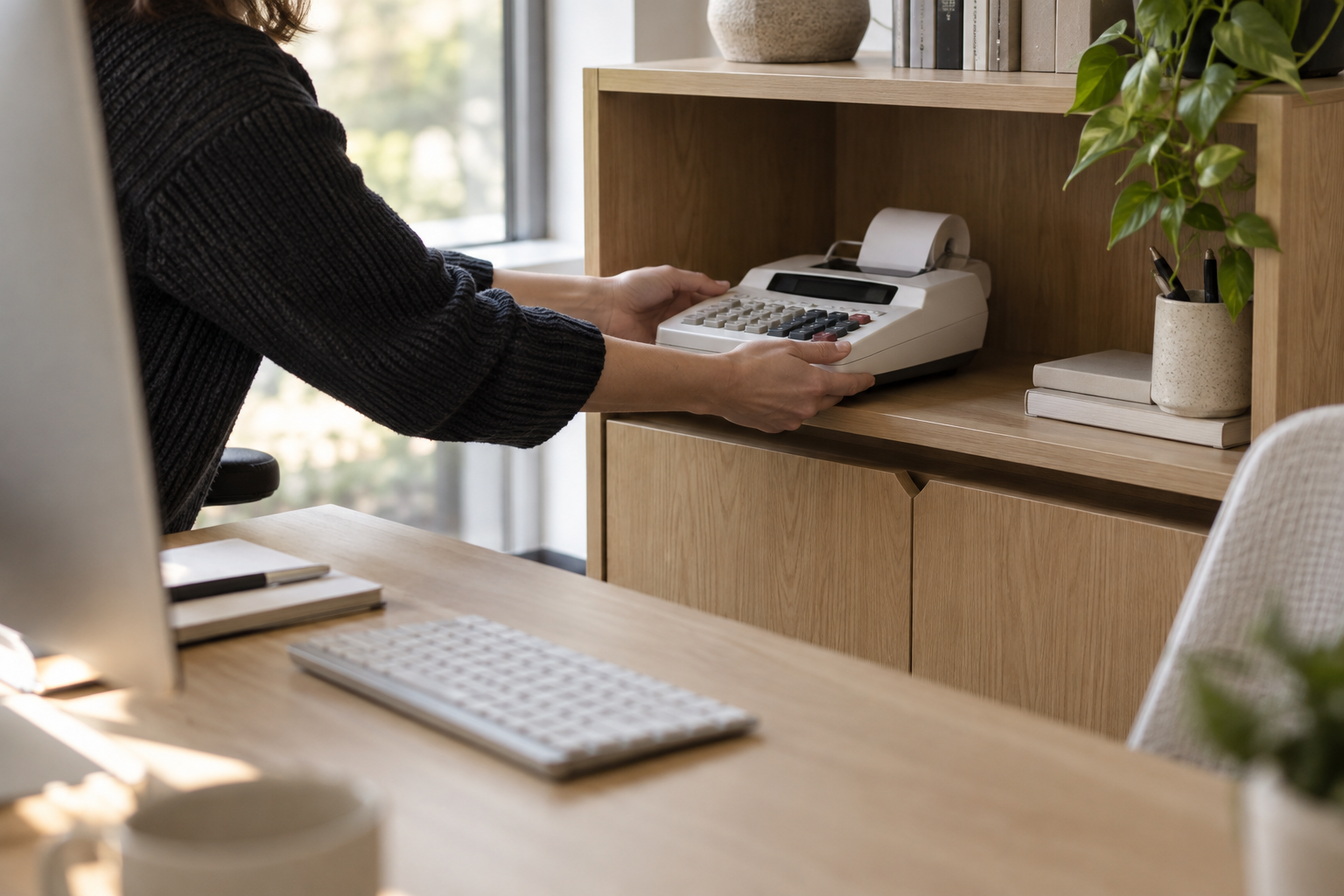
Sharp EL-1750V
Ink roller (Sharp EA-772R)
See the switch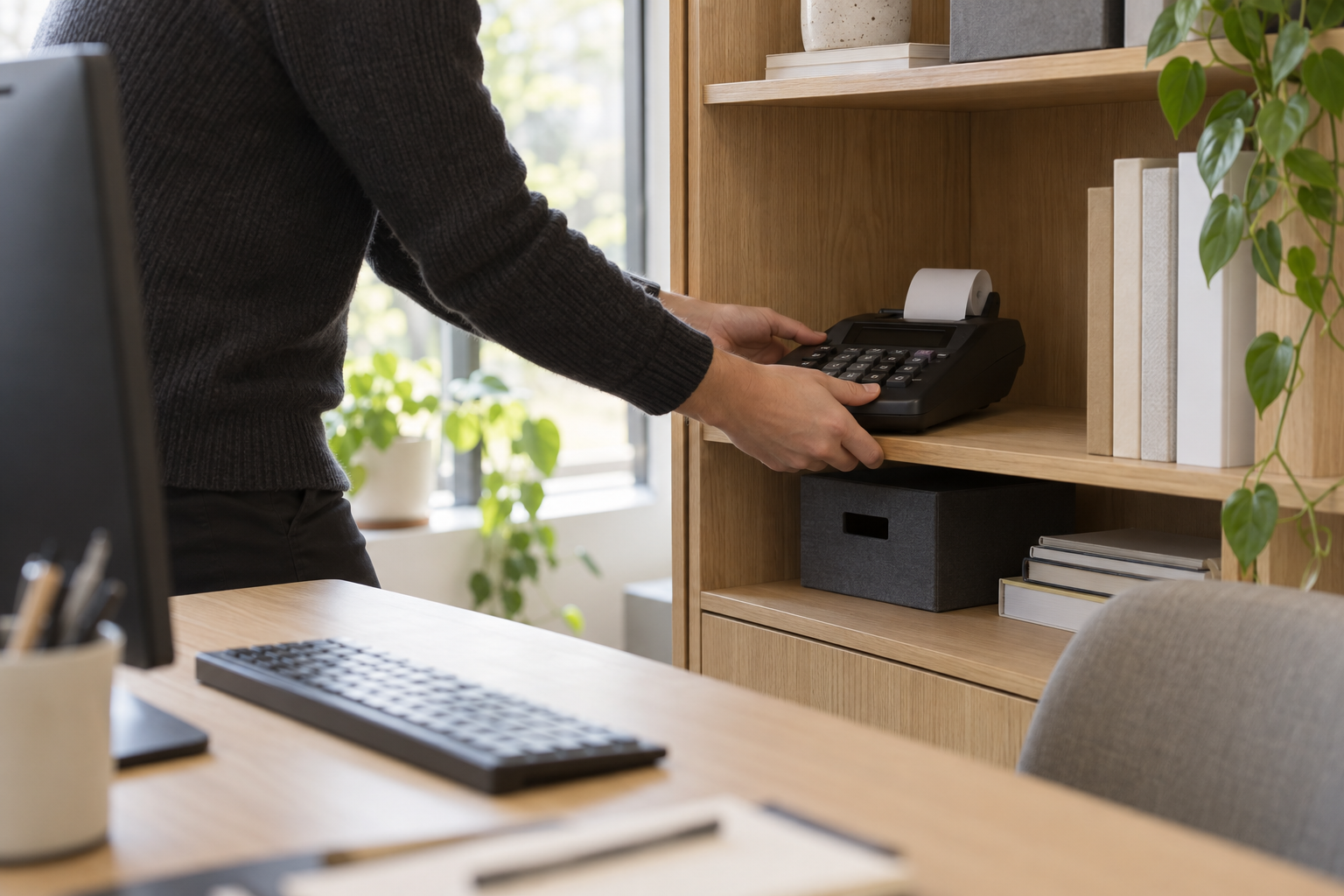
Casio HR-150RC
Ink roller (Casio IR-40T)
See the switch
Canon P23-DHV
Ink roller (Canon CP-13)
See the switch
Victor 1208-2
Ink roller (IR-40T)
See the switch
Casio HR-200RC
Ink roller (Casio IR-40T)
See the switch
Sharp EL-2196BL
Ink ribbon (black/red, GR24 twin-spool)
See the switch
Canon MP11DX-2
Ink ribbon (black/red, GR24 twin-spool)
See the switch
Victor 1240-3A
Ink ribbon (Victor 7010 twin-spool)
See the switchThe Wall of Retired Machines
Made the switch already? Send a photo of the adding machine you unplugged, get 40% of your DeskCalc purchase refunded straight to your PayPal, and your machine earns its place on the wall.
See the wall & get 40% backSwitching from an adding machine, answered
Can DeskCalc replace a Victor, Sharp, Casio or Canon adding machine?
Yes. Whatever name is on the front, a printing calculator works the same way, and so does DeskCalc: a running tape, blind touch-typing on the numeric keypad, Grand Total, memory and a tax key. The key-by-key table above shows where each key lands.
What do I lose by switching from a printing calculator?
The paper, the ribbon and the running cost — nothing else. Every key carries over, and the tape does more than paper ever could: label a line, correct an entry in the middle, save the calculation, and paste the whole strip into Word, Excel or a PDF.
Is there a key DeskCalc does not have?
Only Cost / Sell / Margin — and you won’t miss it. A markup is one labelled line on the tape (cost × 1.30) and a price at a 20 % margin is cost ÷ 0.80, landing on the tape with everything else.
Does it work offline, without an account?
Yes — no account, no cloud, no connection. It runs on Windows 10, 11 and Server, is a 10 MB download, and what you calculate stays on your computer.
What does a desk calculator really cost to keep?
About $11.53 a year in paper, ribbon and electricity, plus the machine itself — roughly $192.26 over eight years for one machine. DeskCalc is $29.95 once. The ROI calculator lets you put in your own numbers.
Can I try DeskCalc before the machine dies?
Yes. The trial runs 31 days with no limits and no account — long enough for a full month-end, which is the only test that matters.
Try it before the machine dies
The trial runs 31 days with no limits and no account. That is long enough for a full month-end — which is the only test that matters.
Victor, Sharp, Casio and Canon are trademarks of their respective owners. DeskCalc is not affiliated with, endorsed by or connected to any of them. The names are used here only to describe which machines people switch from.