Was vorn draufsteht, ändert wenig: Sie arbeiten alle gleich – und sie kosten alle dasselbe an Papier, Farbband und Strom. Hier steht, was sich ändert, wenn das Rechnen an den PC wandert – und was nicht.
Herunterladen – 31 Tage kostenlos testenWindows 10, 11 und Server · 10 MB · ohne Konto
Most laptops no longer have a number pad. For everything else that is a fair trade — the machine gets narrower and the keyboard sits centred in front of the screen. But if your day involves entering columns of figures, the missing block is not a detail. It is the difference between touch-typing numbers and hunting along the top row.
An external numeric keypad fixes that for around 15 to 30 euros. They are not all the same, though, and the differences that matter for bookkeeping are not the ones the product pages talk about.
What actually matters when you pick one
Full-size keys, not a compact layout. Some keypads shrink the keys to fit a smaller shell. If you already know a ten-key by feel, a reduced pitch destroys exactly that muscle memory. Look for the same key spacing as a normal keyboard.
A double-zero key. Cash amounts end in two zeros far more often than in anything else. A dedicated 00 key saves one keystroke on a large share of your entries, and it is the single feature that most clearly separates a keypad built for data entry from one built for gaming.
A Tab key on the pad itself. If you enter figures into a spreadsheet or a booking mask, you constantly move to the next field. A Tab key within reach of your right hand means you never have to go back to the main keyboard mid-column.
Wired or wireless. Wireless is more comfortable on a desk you share with a docking station, but it adds batteries and a receiver you can lose. Wired keypads are cheaper, never run out of power, and are usually the better choice for a machine that stays on one desk. On a laptop that travels, the opposite is true.
Quiet keys if you share an office. Scissor switches are close to silent. Mechanical keypads feel better under the finger and are noticeably louder — worth knowing before it arrives.
The keys a calculator has and a keypad does not
This is where the comparison gets interesting. A desk calculator has keys a numeric keypad simply does not carry: subtotal, grand total, percentage, tax, and a key to correct the last entry without clearing everything.
A numeric keypad gives you ten digits, four operators, a decimal point and Enter. Everything else has to come from the software — which is exactly what a tape calculator on the PC is for. In DeskCalc the running tape stays on screen, every line remains editable after the fact, and the result updates itself. The keypad handles the input; the program handles the parts a keypad has no key for.
Put differently: the keypad gives you back the feel of the ten-key, and the software gives you the paper tape without the paper.
Programmable keypads
Some keypads let you reassign keys. If you have one of those, the few spare keys are worth setting up once: subtotal and grand total are the two you will reach for constantly, and a percentage key is worth a third.
It takes five minutes and it is the closest you will get to a real adding machine without buying one.
Which one to buy?
Go to your local IT store or search the internet for a proper keypad, you will find a product that fits your requirements.
Try it with the tape
A keypad on its own gets you fast input. What it does not give you is the strip of paper that a desk calculator prints — the record you check when the total looks wrong, and the reason accountants kept those machines long after every PC had a calculator on it.
Version 11 is out. The biggest change is one you notice in the first minute: what happens after you press Copy.
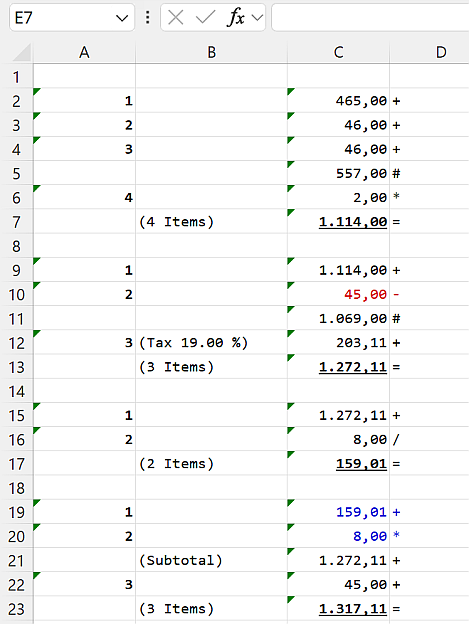
Paste the tape — and it stays a table
Until now, pasting a tape into Word or Excel gave you text you had to tidy up afterwards: columns realigned by hand, formatting redone, negative amounts turned black.
DeskCalc 11 puts the tape on the clipboard in four formats at once — HTML, an RTF table, plain text and an image. Word, Excel and WordPad each take the one they handle best. What arrives:
- real columns, with no manual alignment
- the font and the colours from your tape
- negative amounts still in red
- your position labels, where you put them
This is the route most people take out of DeskCalc: the calculation goes onto the document, so anyone can see later how a total came about.
Take figures from any window — with nothing else installed
Click & Calc reads numbers straight off the screen: select them, and they land in the tape. No retyping, no import step, and it does not care where the numbers come from — a PDF in the browser, a scanned invoice, your accounting software, a screenshot someone sent you.
In version 11 this works on its own. It previously required the Windows PowerToys to be installed alongside. In a firm where IT does not allow extra installations, that put the feature out of reach. It no longer does.
It also picks up the decimal separator from the scanned text, so both 1,234.56 and 1.234,56 arrive correctly. And you can put it on the quick access toolbar.
The tape as a picture — for PDF and anywhere else
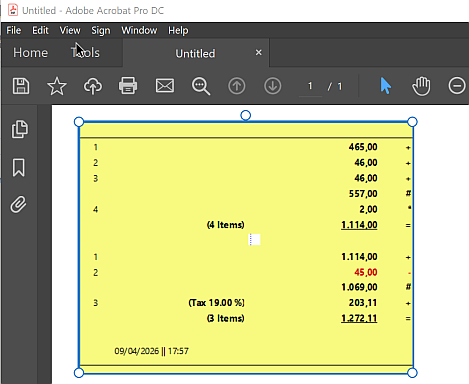
Sometimes you do not want a table but the tape exactly as it looks on screen. In the options you choose which one copying hands over, and the picture now carries the tape's own colours instead of plain black on white.
Pasting into Adobe PDF Pro and Creator is supported and works properly — the paste that used to come out oversized now arrives at the right size.
The Windows 11 look, in every dialog
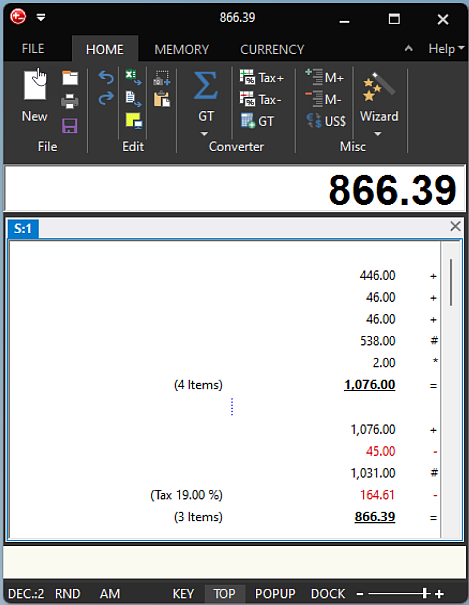
Every dialog now follows the theme you chose, light or dark. The dark themes were reworked where they were still patchy — the status bar, the FILE menu, the options button. On Windows 11 the title bar is dark and the corners are rounded.
Every total, without switching tabs
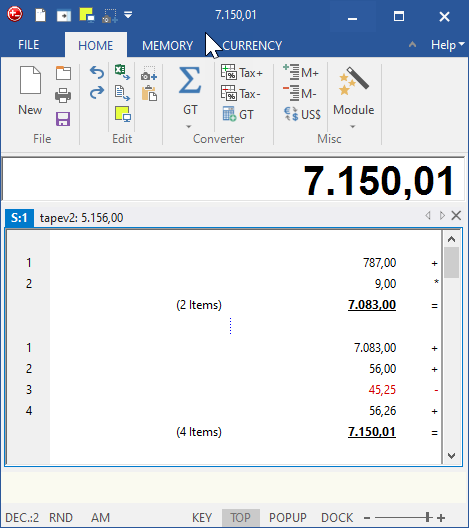
Each tape now shows its result in its own tab header. With several tapes open — one per client, one per account — you read all the totals at a glance instead of clicking through them.
A jump list in the taskbar
Right-click the taskbar icon for a new tape, Click & Calc, or Copy as image — and for the tapes you had open most recently.
Spanish, French and Italian
Spanish, French and Italian have been added or brought up to date.
Also fixed
ENTER and ESCAPE now behave correctly when you finish editing a text on the tape.
About your licence
Version 11 needs its own licence key. Your existing key stays valid — permanently, for every 10.x version. Nothing has been switched off, and version 10 keeps working exactly as it did.
If you own an earlier version — 6, 7, 8, 9 or 10 — you get version 11 at 30% off, with no deadline. That discount is part of your licence and applies to every future major version: what you bought does not lose its value.
Version 11 also runs 31 days with the full feature set, so you can try it before you decide. If you bought only recently, just write to us — you will get the upgrade free.
Prefer to stay on version 10? That is fine, and the last release is still available: DeskCalc 10.1.4.
Where the paperless office is not yet 100% complete, you will occasionally need a printout of the adding tape for filing or stapling. Descalc can now also be printed on receipt printers. This saves a lot of paper compared to laser printing.
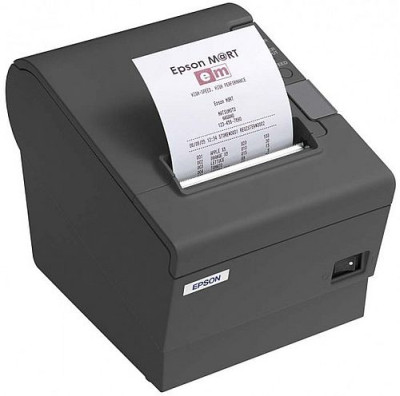
Weiterlesen: Adding machine is now recipe printer compatible