Installing DeskCalc on Windows
Your browser and Windows will both warn you about the setup file. That is expected. Here is what the warnings mean and which button to click.
Why the warning appears
The DeskCalc setup is not signed with a code-signing certificate yet. Windows SmartScreen and the download filters in Chrome and Edge treat every unsigned installer the same way: they do not recognise the publisher, so they warn. The warning is about the missing signature — not about anything found inside the file.
DeskCalc has been downloaded more than 5 million times from this site. A signed setup is on the way; until then these dialogs stand between you and the installation. Three clicks, and you are through.
One thing worth checking: make sure the
file really came from this site. The only official setup is
https://www.deskcalc.com/downloads/deskcalc_uk.exe.
Download portals repackage installers with bundled adware — that is a real
risk, and the one this page cannot help you with.
Keep the download in your browser
Chrome and Edge hold back unsigned .exe files. Both take two clicks.
Google Chrome
Instead of a finished file, the download bubble at the top right shows a warning. Click the ⋮ next to the file name and choose Keep. If Chrome asks a second time, confirm with Keep anyway.
Microsoft Edge
Edge reports that the file was blocked because it could harm your device. Click the ⋯ on that line and choose Keep. Edge then asks once more — open Show more and click Keep anyway.
Get past “Windows protected your PC”
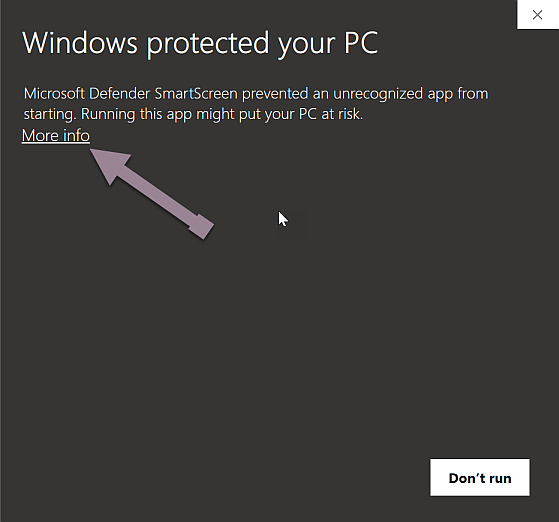
Microsoft Defender SmartScreen. It appears when you start the setup.
At first the dialog only offers Don’t run. The button you need is hidden behind More info.
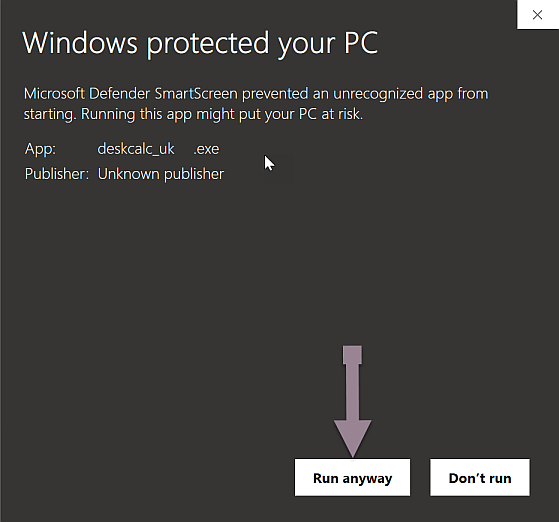
The dialog now shows the file name and
Publisher: Unknown publisher — that is the missing signature —
plus a second button. Check that the app really is
deskcalc_uk.exe,
then click Run anyway.
Confirm the User Account Control prompt
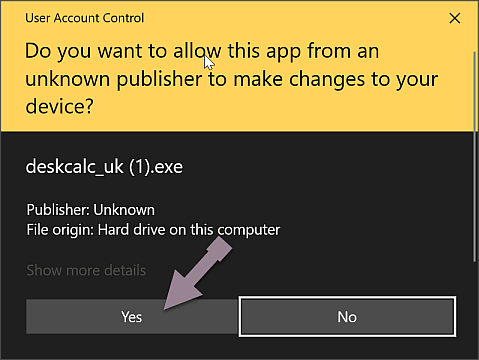
The last dialog. Every Windows installer gets this one.
Windows asks whether the app may make changes to your device. Click Yes and the setup runs normally. On a company PC this step may require an administrator account.
Still blocked — by a company policy, by antivirus software that removes the file, or by a dialog that looks different from these? Write to us. We answer these mails ourselves.