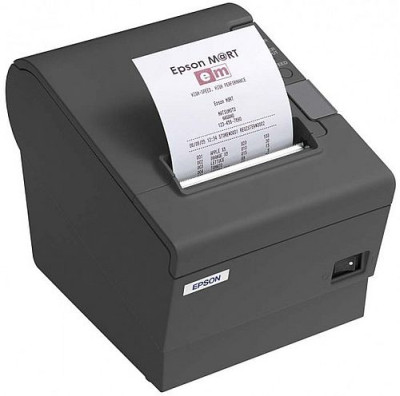
Where the paperless office is not yet 100% complete, you will occasionally need a printout of the adding tape for filing or stapling. Descalc can now also be printed on receipt printers. This saves a lot of paper compared to laser printing.
Version 8.21
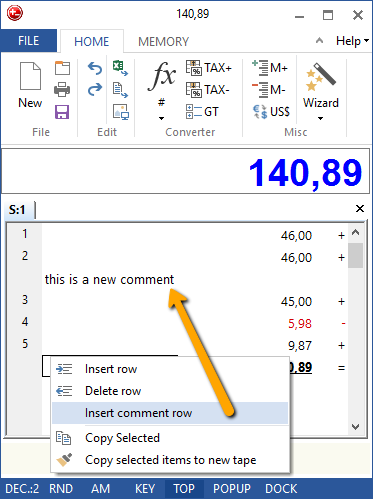
Now you can run a tape and then go back and insert blank lines beneath or above figures, and comment in the text areas. That gives you the possibility to explain the figures in more detail.
Option 1 - Windows Keyboard Shortcut
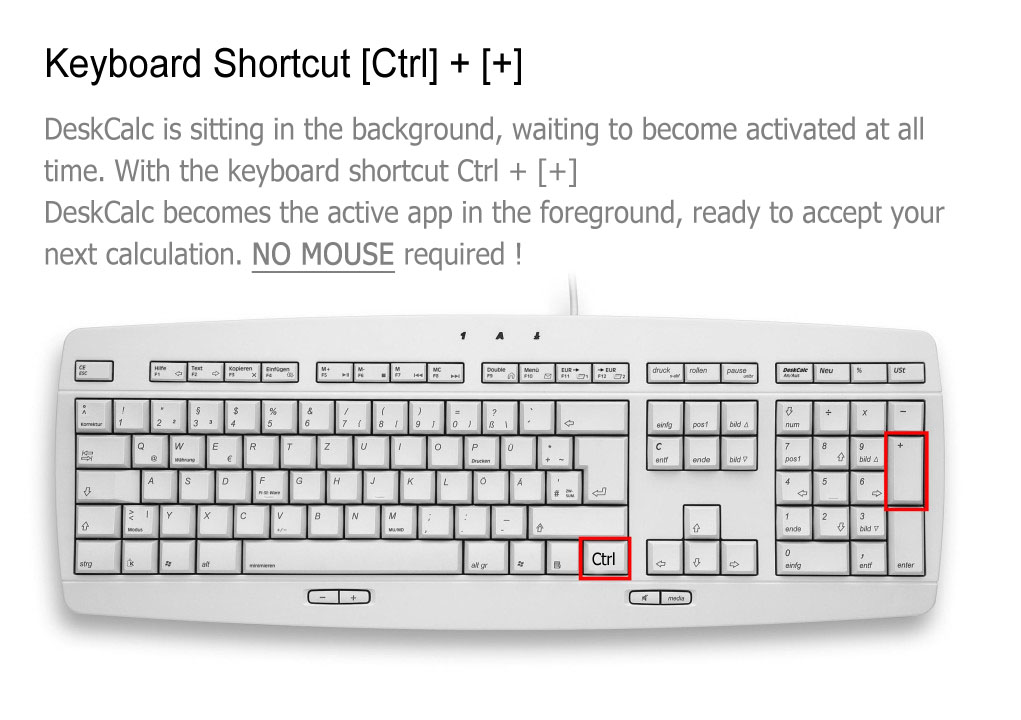 This is especially useful if you permanently switch between your applications and DeskCalc. You can choose the shortcut from a list in the settings window.
Read more: Hide/Show DeskCalc with Keyboard Shortcut / Popup / Docking
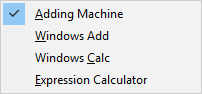
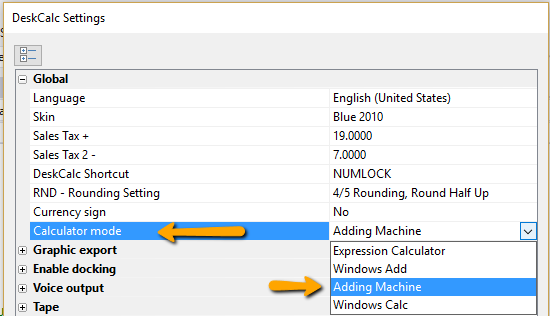
DeskCalc has four calculator modes.
- Adding machine ( Commercial Desktop calculator )
- Windows Calcuator
- Expression Calculator
- Windows Adding Machine
DeskCalc takes into consideration the different computing ways of conventional devices and thereby can be immediately used by all users without a reorientation
For the fast keyboard-supported change-over a context menu can be opened by selecting with (<).