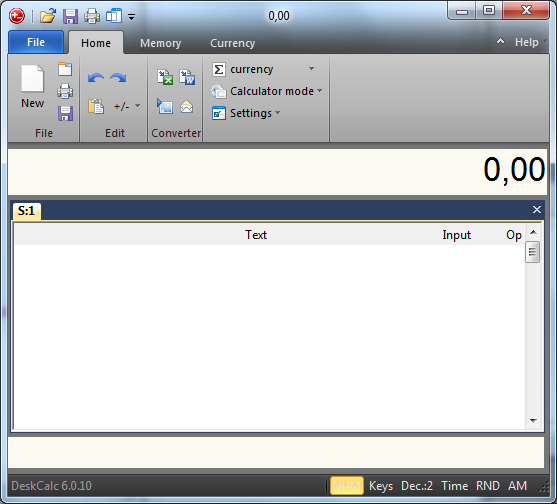
Previously DeskCalc was limited to vertical window size resizing, but version 6 finally allows you to change the width as well.
 Â
Â
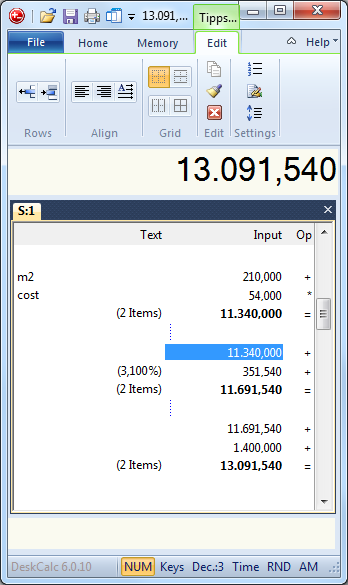
In previous DeskCalc versions all kind of tape settings like:
- line numbers
- memorized text
- align text
- tape settings
- add/remove lines
had been hidden in various setting dialogs. But if you click the tape now, all these
settings are available at the same time.
 Â
Â
A nice new feature in Deskcalc 6 is the docking function. But what is docking:
What are appbars (application desktop toolbars)? An appbar (application desktop toolbar) is a window similar to the Quick Launch bar, the Language Bar or the Windows Taskbar. It is anchored/docked to an edge of the screen, and it typically provides the user with quick access to various things like program shortcuts, favorite files, folders or URLs, information such as the local weather or sports news, or commonly used programs such as a clock, stopwatch or your calculator. Appbars are allocated their own area on the screen and the system prevents other applications from using that area.
Using this Windows functionality DeskCalc is always visible and doesn't use space occupied by other applications on the desktop.
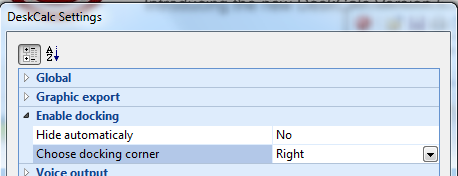
Choose the screen border for docking:
 Â
Â
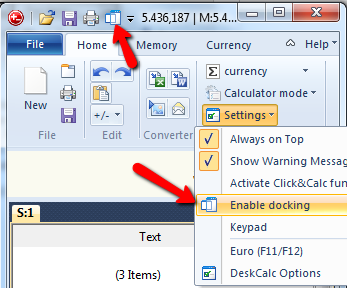
Enable docking:
 Â
Â
In earlier Desk versions it wasn't possible to to adjust the width of the dialog.
That has been changed now because DeskCalc is used as calculator on touch screen
by some costumers. They use and start it in fullscreen mode with the /FS command line flag.
deskcalc.exe /FS .... starts DeskCalc in Fullscreenmode
deskcalc.exe /hide .... starts DeskCalc hidden
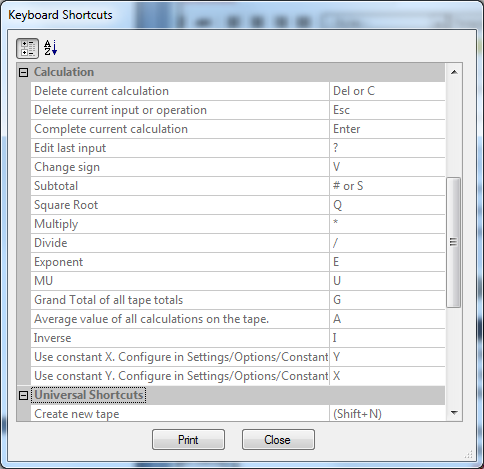
Keyboard shortcuts can highly improve your user experience. Press CTRL + F1 to check out all
shortcuts. Version 6 enables you now to print the shortcuts.