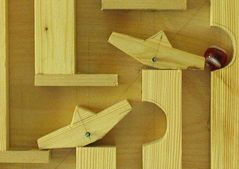
 Today I found some really strange adding machines that I want to share with you. Lets start with a marbe adding machine... you can even buy one for only US$250, worth more than 10 DeskCalc licenses :)
Today I like to share some thoughts of other DeskCalc users with you. First of all, because it makes us feel good :) It seems like we are doing the right thing. We always wanted DeskCalc to be as smart and easy to use, as an conventional adding machine for users who, for many different reasons, wanted an adding machine for their PC. Actually that's us as well, that is the reason why this calculator was created. Thanks for your comments, wishes and complaints as they are always welcome.
Read more: Some user comments we got the last couple of weeks.
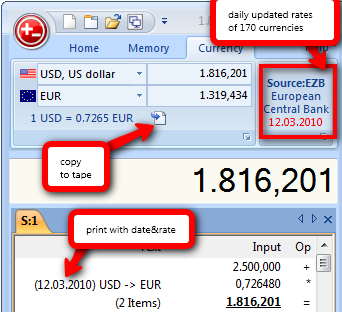 DeskCalc includes a currency converter with 170 currencies updates on a daily basis. Not much to say about, how to use it, because it's really simple. Enter your numbers, do your calculations and at any time, start a currency convertion and add the result to your tape. If you need rates from last week or last year, press CTRL+W to start the enhanced currency calculator
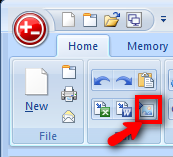 Our costumers had the requirement to store and archive calculations with a time stamp. In earlier days they copied their checkstrips and appended them to their documents. In a paperless office, or an office with a document management system, this is not a very convenient way.
While there are many options to export data from DeskCalc, the "PostIt" feature is the most easiest of all. It does copy the checkstrip as a "metagraphic" to the clipboard. A meta-graphic has the benefit, that it can be resized without the loss of details, it's a so called vector graphic format. Costumers to append such "PostIt's" to their PDF-files, WORD-files, document management files etc.
These "PostIt's" include date&time as well as the document name and you are able to give them any background color you like.

 If you are working with your tape calculator on a daily basis, you'll
often might like to share your calculation with a colleague or
costumer. Running a conventional desktop adding machine you might scan or copy your tape to get this done.
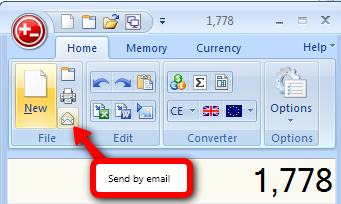
A single click and you can archive the same, when using Deskcalc. DC sends an email with the tape and an additional graphic file to your colleagues or costumers.
Some of our costumers use this feature to automatically archive all tapes in a document management system.