Version 11 is out. The biggest change is one you notice in the first minute: what happens after you press Copy.
Paste the tape — and it stays a table
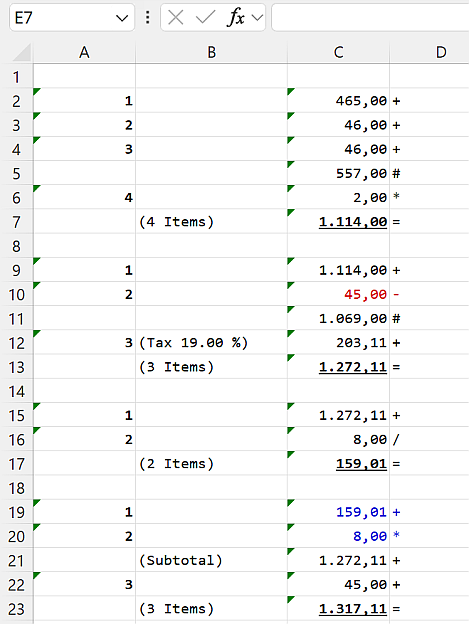
Until now, pasting a tape into Word or Excel gave you text you had to tidy up afterwards: columns realigned by hand, formatting redone, negative amounts turned black.
DeskCalc 11 puts the tape on the clipboard in four formats at once — HTML, an RTF table, plain text and an image. Word, Excel and WordPad each take the one they handle best. What arrives:
- real columns, with no manual alignment
- the font and the colours from your tape
- negative amounts still in red
- your position labels, where you put them
This is the route most people take out of DeskCalc: the calculation goes onto the document, so anyone can see later how a total came about.
Take figures from any window — with nothing else installed
Click & Calc reads numbers straight off the screen: select them, and they land in the tape. No retyping, no import step, and it does not care where the numbers come from — a PDF in the browser, a scanned invoice, your accounting software, a screenshot someone sent you.
In version 11 this works on its own. It previously required the Windows PowerToys to be installed alongside. In a firm where IT does not allow extra installations, that put the feature out of reach. It no longer does.
It also picks up the decimal separator from the scanned text, so both 1,234.56 and 1.234,56 arrive correctly. And you can put it on the quick access toolbar.
The tape as a picture — for PDF and anywhere else
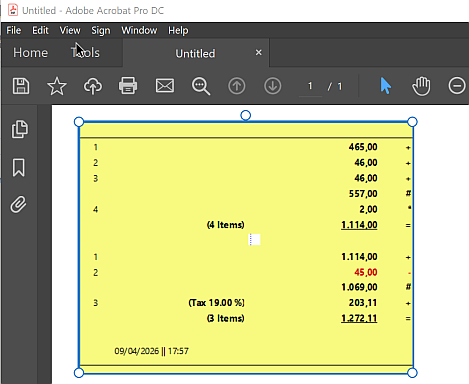
Sometimes you do not want a table but the tape exactly as it looks on screen. In the options you choose which one copying hands over, and the picture now carries the tape's own colours instead of plain black on white.
Pasting into Adobe PDF Pro and Creator is supported and works properly — the paste that used to come out oversized now arrives at the right size.
The Windows 11 look, in every dialog
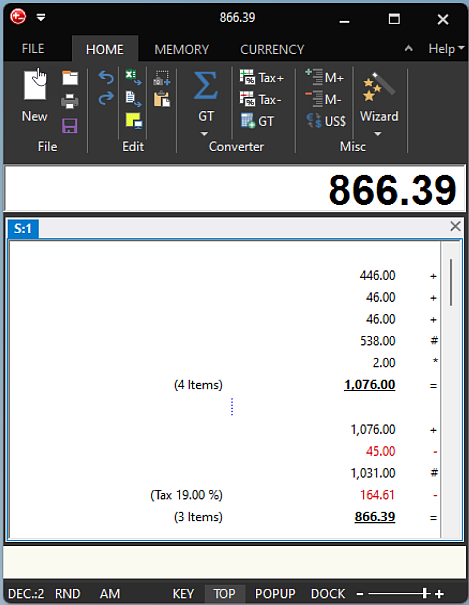
Every dialog now follows the theme you chose, light or dark. The dark themes were reworked where they were still patchy — the status bar, the FILE menu, the options button. On Windows 11 the title bar is dark and the corners are rounded.
Every total, without switching tabs
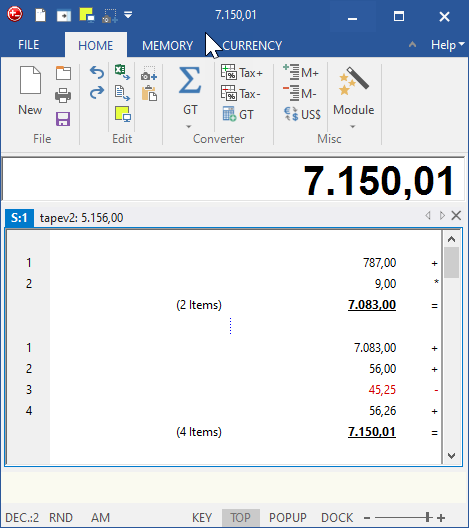
Each tape now shows its result in its own tab header. With several tapes open — one per client, one per account — you read all the totals at a glance instead of clicking through them.
A jump list in the taskbar
Right-click the taskbar icon for a new tape, Click & Calc, or Copy as image — and for the tapes you had open most recently.
Spanish, French and Italian
Spanish, French and Italian have been added or brought up to date.
Also fixed
ENTER and ESCAPE now behave correctly when you finish editing a text on the tape.
About your licence
Version 11 needs its own licence key. Your existing key stays valid — permanently, for every 10.x version. Nothing has been switched off, and version 10 keeps working exactly as it did.
If you own an earlier version — 6, 7, 8, 9 or 10 — you get version 11 at 30% off, with no deadline. That discount is part of your licence and applies to every future major version: what you bought does not lose its value.
Version 11 also runs 31 days with the full feature set, so you can try it before you decide. If you bought only recently, just write to us — you will get the upgrade free.
Prefer to stay on version 10? That is fine, and the last release is still available: DeskCalc 10.1.4.
Introducing DeskCalc Version 10 – the next generation in desktop calculator software. Designed for professionals who demand more from their tools, DeskCalc delivers an unmatched user experience with powerful features tailored for accountants, bookkeepers, and financial analysts. The new Click and Calc OCR feature lets you instantly capture and calculate numbers from any Windows application, enhancing productivity and accuracy.
With DeskCalc, managing your calculations has never been easier. Enjoy the convenience of saving, restoring, and exporting your calculation tapes to Excel, PDF, and Word with just a click. This makes reporting and sharing data seamless. DeskCalc eliminates the need for paper tapes, offering a sustainable and cost-effective solution while still providing the detailed tape function you love.
Upgrade to DeskCalc Version 10 and elevate your workflow with a tool designed to meet the demands of modern professionals. Discover the future of desktop calculation today.
For years, traditional desktop calculators have been the go-to tool for professionals who need reliable, quick calculations at their fingertips. However, in today's digital age, it's time to consider an upgrade. DeskCalc, a powerful software-based tape calculator, offers all the familiar functions of a traditional desktop calculator, plus an array of advanced features that can significantly enhance productivity and accuracy. Here’s why switching to DeskCalc is a smart move for any professional still relying on a conventional calculator.
Read more: Why DeskCalc is the Superior Choice Over Traditional Desktop Calculators
DeskCalc is a versatile tool that can benefit a wide range of businesses. Here’s an analysis of different types of businesses that would gain the most from DeskCalc and the three most beneficial features for each:
1. Accounting Firms
Beneficial Features:
- Export to PDF, Excel, and Word: Accountants often need to prepare detailed financial reports. DeskCalc allows them to export calculation tapes directly to these formats, making it easy to incorporate calculations into formal financial documents.
- Tax Calculation: With built-in tax calculation functions, accountants can quickly apply and calculate tax amounts, ensuring accuracy and saving time on manual tax entries.
- Click and Calc (OCR Capture): Accountants often need to pull figures from various documents. This feature enables them to capture numbers from scanned documents, emails, or invoices, reducing data entry errors and speeding up the workflow.
1. Accountants
Position: Accountant, CPA, Financial Analyst
Beneficial Features:
- Export to PDF, Excel, and Word: Accountants frequently need to integrate calculations into financial statements, tax filings, or reports. Exporting directly to these formats allows for seamless inclusion of calculations into official documents.
- Tax Calculation: With complex tax codes and varying rates, having a built-in tax calculation feature ensures precision and efficiency, reducing manual errors in tax computations.
- Click and Calc (OCR Capture): Accountants often work with financial documents containing numbers that need to be recalculated. The OCR feature allows them to extract numbers directly from digital or scanned documents, speeding up data entry and reducing errors.